Jump to content

Apple Hard Disk 20 Maintenance

From RetroTechCollection
Apple Hard Disk 20

The Apple Hard Disk 20 (HD20) was Apple’s first external hard drive designed for early Macintosh models. It features a 20 MB Rodime RO552 mechanism housed in an external enclosure. Unlike later SCSI drives, the HD20 uniquely connects through the Macintosh floppy disk port, utilizing a proprietary interface. Due to aging components, HD20 units frequently require thorough maintenance and careful restoration to remain operational.

Disassembly Instructions

[edit | edit source]

Warning: Always unplug the HD20 and use anti-static precautions before disassembly. The plastic case may have become brittle; handle with care.

Tools Required

[edit | edit source]
  • Torx screwdriver (bottom screw)
  • Small flat-head screwdriver or plastic pry tool (for case tabs)
  • Phillips screwdriver (internal screws)
  • Anti-static wrist strap

Step-by-Step Disassembly

[edit | edit source]
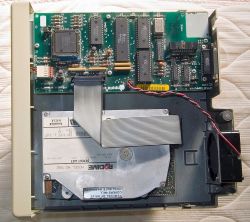
  1. Apple Hard Disk 20 (Lid Removed)
    Remove bottom screw: Turn unit upside down and remove the Torx screw securing the case.
  2. Release case tabs: Carefully use a flat-head or plastic tool to gently disengage the plastic tabs along the case seam without cracking them.
  3. Lift the top cover: Once tabs release, gently lift off the cover.
  4. Disconnect internal cables: Unplug the power supply, hard disk ribbon cable, fan cable, external interface cable, and LED indicator (if present) from the controller board.
  5. Remove the controller board: Unscrew the grounding screw and four corner screws, then remove the controller board carefully.
  6. Remove RF shielding: If present, remove screws holding the metal RF shield and lift it out.
  7. Remove the cooling fan: Unscrew fan mounting screws, lift out, and disconnect remaining wires.
  8. Remove power supply (PSU): Unscrew mounting screws, lift out, and disconnect PSU cables.
  9. Remove hard drive: Disconnect any remaining cables and remove the four screws securing the Rodime drive. Lift the drive out gently.

Cleaning and Preservation

[edit | edit source]

Proper cleaning ensures longevity and functionality.

External Cleaning

[edit | edit source]

Clean the enclosure with mild detergent or isopropyl alcohol. Avoid harsh solvents. Consider retrobrite treatment carefully if yellowed.

Internal Electronics Cleaning

[edit | edit source]

Use compressed air and brushes to remove dust from electronics. Clean corrosion or sticky residue gently with isopropyl alcohol and cotton swabs.

Rodime Drive Cleaning

[edit | edit source]

Avoid opening the drive unless necessary. Clean external contacts gently. Internal cleaning should only be performed in dust-free conditions if head stiction occurs, using 99% isopropyl alcohol and lint-free swabs.

Preventative Preservation

[edit | edit source]

Consider replacing electrolytic capacitors in both the power supply and Rodime logic board. Replace degraded rubber components. Store in a low-humidity, stable environment.

Troubleshooting and Diagnostics

[edit | edit source]

Use systematic steps to diagnose issues:

  • No power/spin-up: Check power supply voltages (+5V and +12V). Inspect for blown fuse or failed capacitors.
  • Spins but not recognized: Confirm cable connections; check head stiction or faulty controller board components.
  • Drive spins down immediately: May indicate mechanical seizure or PSU overload.
  • Unusual noises: Grinding (dry bearings), repeated clicking (head seek issues), no noise but heat (stalled motor).
  • Data errors: Check for bad sectors or corrupted disk format. Use Apple’s HD20 Test Utility for diagnostics.

🔧 Component-Level Repairs

[edit | edit source]

Detailed repairs ensure reliability:

Rodime RO552 (Lid Off)

Spindle Motor Lubrication

[edit | edit source]

Address spindle motor freezing due to dried lubricant:

  1. Access spindle bearing from drive underside.
  2. Apply 2-3 drops of high-quality lightweight oil (e.g., sewing machine oil).
  3. Gently rotate spindle manually; power briefly to test spin-up.

Head Stiction Repair

[edit | edit source]

Resolve heads sticking to platters:

  1. Open drive in a clean environment.
  2. Carefully detach stuck heads using a thin plastic tool.
  3. Clean heads/platter with alcohol; remove sticky bumpers if present.

Power Supply Repairs

[edit | edit source]

Recap aging PSU capacitors. Check fuse, transistors, and voltage regulators. Replace with identical or higher-spec components.

Controller Board Repairs

[edit | edit source]
Apple HD20 Control Board

Inspect for cracked solder joints and damaged ICs. Reflow solder connections and replace visibly damaged components.

Cooling Fan Maintenance

[edit | edit source]

Clean and lubricate the fan, or replace if faulty to ensure adequate cooling.

Known Mechanical Failures

[edit | edit source]

Common mechanical issues include dried spindle bearings, head stiction, degraded rubber bumpers, spindle motor failures, head crashes, worn stepper mechanisms, and cooling fan failure. Regular inspection and lubrication mitigate these issues.

Long-Term Storage and Power-Up

[edit | edit source]

Store in a climate-controlled environment (10–27 °C, 40–50% humidity). Spin up the drive periodically to maintain lubricant distribution. Inspect thoroughly and lubricate before powering up after long-term storage. Always back up data immediately after reviving the drive.

[edit | edit source]